
English
Balance & Transaction Logs
All credit adjustments (deductions for video publishing, instant top-ups, and automated refunds) are tracked with immutable audit records accessible directly on your Dashboard.
1. Viewing Transaction Logs in Dashboard
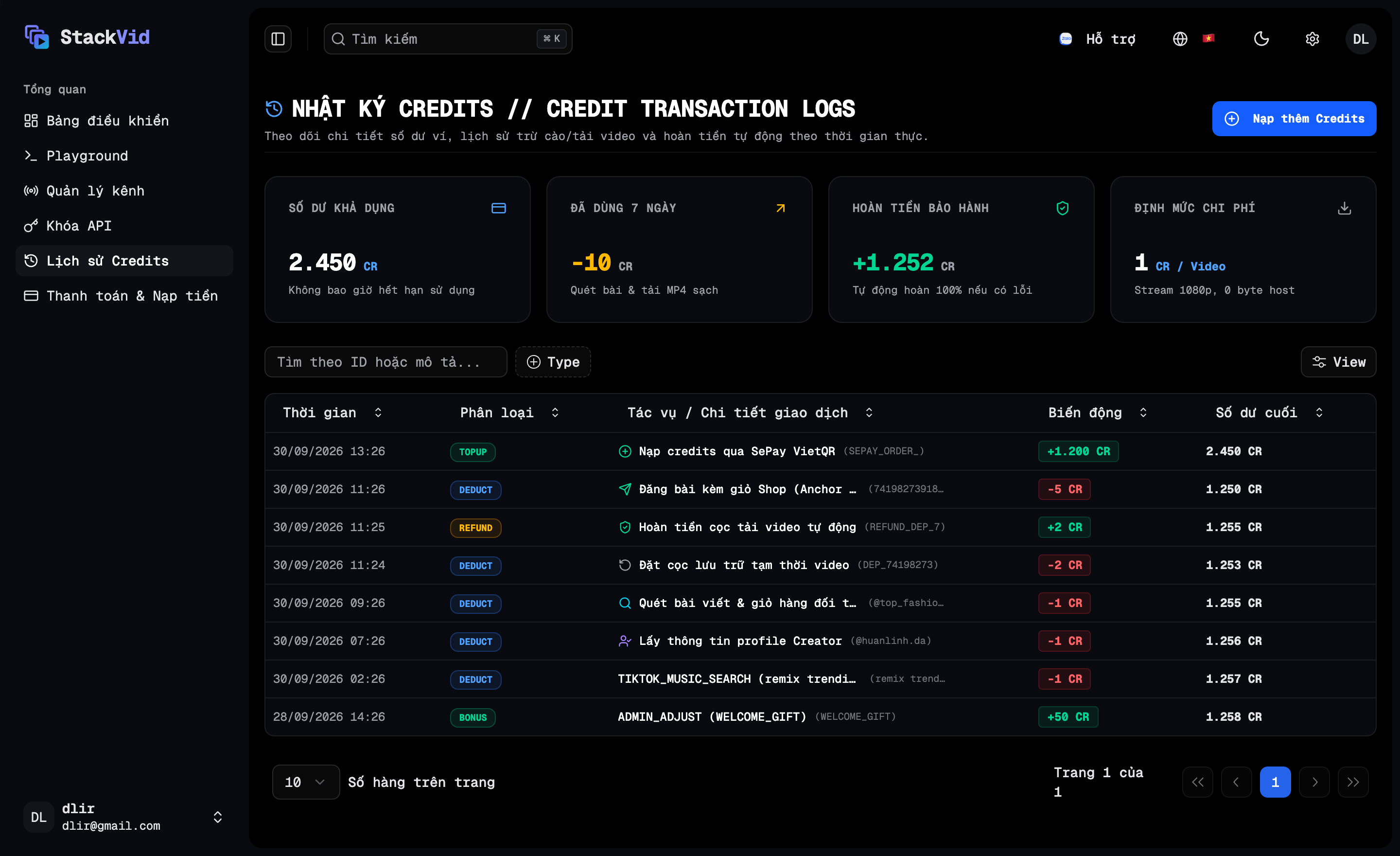
To inspect your complete wallet history:
- Log into your Dashboard and select Credit Logs (
/credit-logs) in the left sidebar. - The real-time ledger displays detailed transaction entries:
- Timestamp: Exact date and time of the event.
- Type:
TOPUP(Green): Successful credit purchase via VietQR.DEDUCT(Blue): Credit consumed for API operations.REFUND(Emerald): Automated deposit refund or failed job reimbursement.BONUS(Purple): Welcome bonus credits awarded to new accounts.
- Description: Plain-English action details and reference IDs (e.g. Publish Video with Shop Cart, Crawl Competitor Posts, Crawl Creator Profile, Download Clean 1080p MP4).
- Amount: Credit delta (
+500or-5). - Balance After: Remaining wallet balance immediately following the transaction.
2. Automated Refunds & Zero-Risk Guarantee
- Upload Deposit Refund: When requesting a presigned URL for staging local video files temporarily, a temporary 2,000-credit storage deposit is held. Once the video is successfully published to TikTok (
200 OK), the system automatically refunds 100% (+2,000 Credits) back to your wallet (if you publish using an existing direct video link, no deposit is incurred). - Failure Reimbursement: If an upstream network interruption or TikTok API rejection occurs, the operation rolls back and refunds all deducted credits automatically.