English
TikTok Streak Keeper
The TikTok Streak Keeper helps you automate maintaining daily streak flames (🔥) in TikTok Direct Messages, preventing broken streaks without manual reminder overhead.
1. How It Works & Smart Streak (Cost Saving)
StackVid implements proprietary Smart Streak technology to optimize credit usage:
- Automated Skip When Already Messaged (0 Credits): Under the End of Day (Recommended) mode, the system automatically inspects the conversation at 22:30. If you or your partner have already sent a message today, the message is marked
SKIPPEDand zero credits are deducted. - Billing Rate: Consumes exactly 500 Credits (500 VND) only upon a successful message transmission.
- Anti-ban Jitter: Applies a random jitter (±1-3 minutes) to fixed schedules to mimic organic mobile user behavior and prevent bot detection.
2. Schedule Modes
| Mode | Badge | Description |
|---|---|---|
| End of day if unsent | Recommended | Evaluated at 22:30 PM. Sends a message only if no messages have been exchanged today. |
| Random time of day | Random | Selects a random timestamp within your configured time window (e.g. 09:00 - 22:00). |
| Fixed time | Fixed | Transmits at an exact time every day (e.g. 10:30 AM). |
3. Setup Guide on Dashboard
Prerequisite: Connect Your TikTok Channel with Extension
To allow the system to send automated streak messages on your behalf, your TikTok account must be connected to StackVid. You can use the open-source StackVid Connect browser extension to link your account and capture active sessions with 1 click (or connect manually under Connecting Channels).
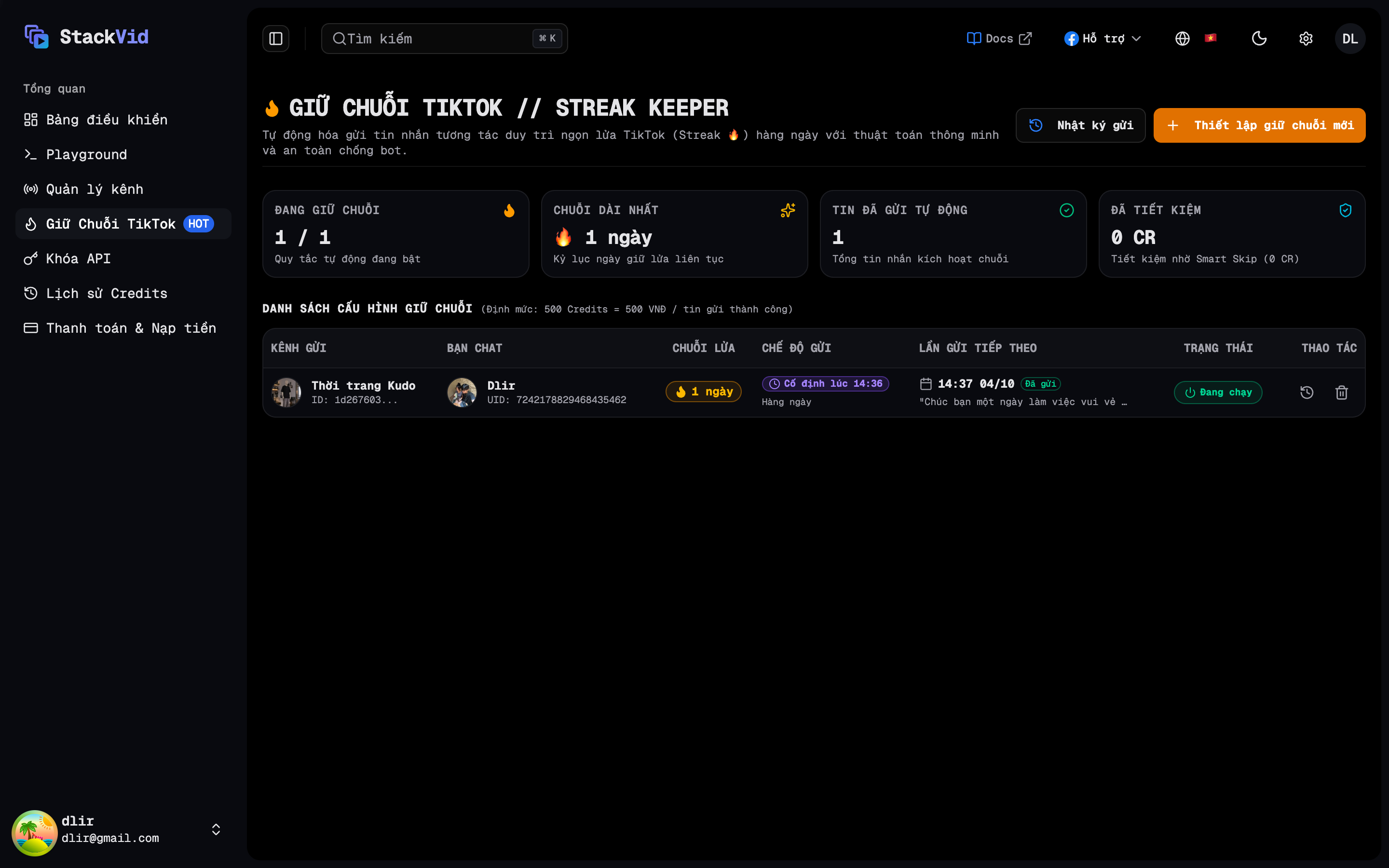
- Step 1: Log into the User Dashboard and click "Streak Keeper" on the sidebar.
- Step 2: Click "New Streak Setup".
- Step 3:
- Select the TikTok Channel sending the message.
- Choose the Conversation (the dropdown automatically resolves partner Avatars, Nicknames, and
@usernamehandles). - Select your preferred Schedule Mode (
End of day if unsentis recommended). - Optionally toggle the ±1-2 minute jitter checkbox to prevent automated bot pattern recognition.
- Customize the Messages Pool (templates picked at random to avoid repetitive messaging).
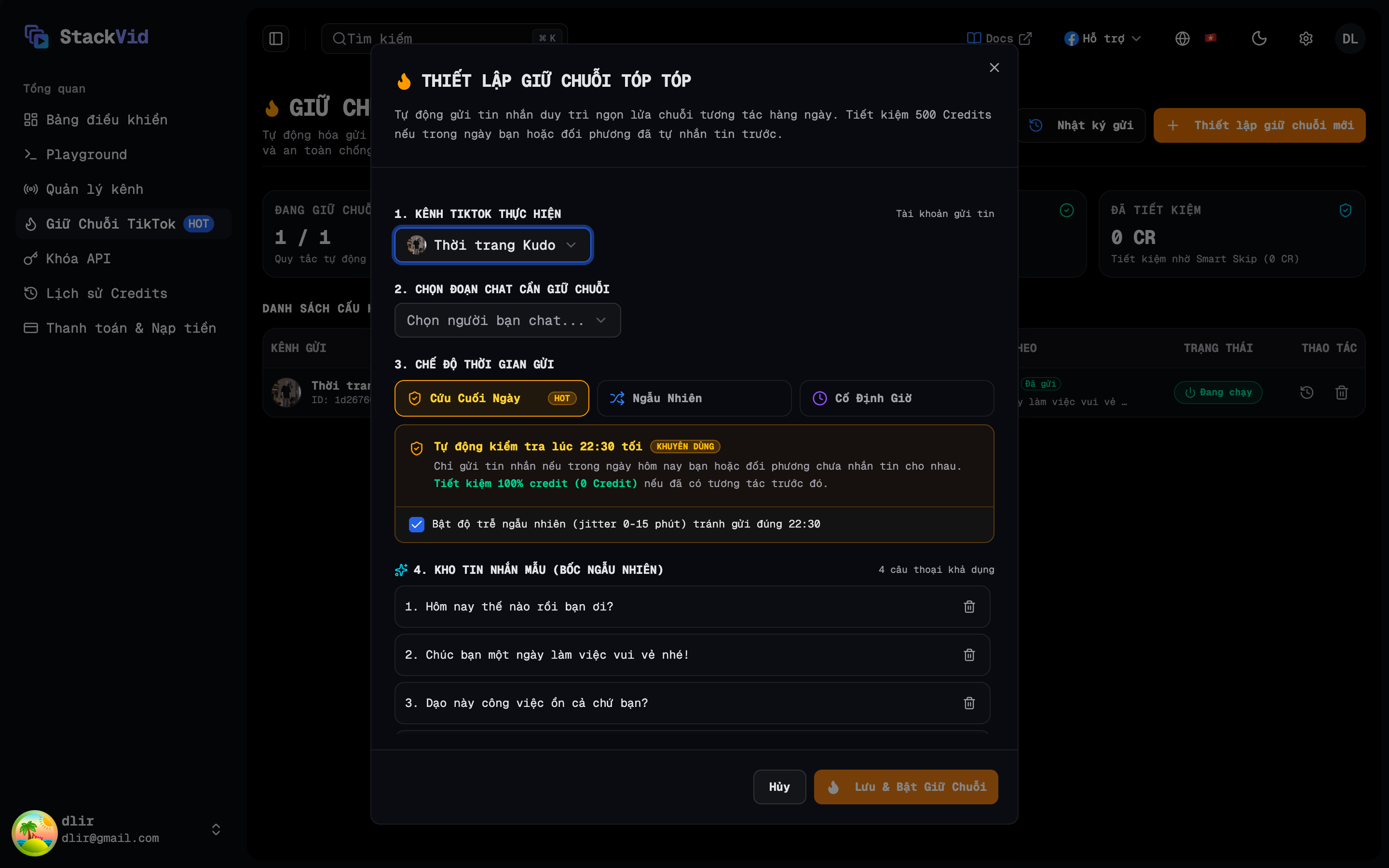
- Step 4: Click "Save & Enable Streak". Today's message is immediately planned and queued.
4. Monitoring & Message Logs
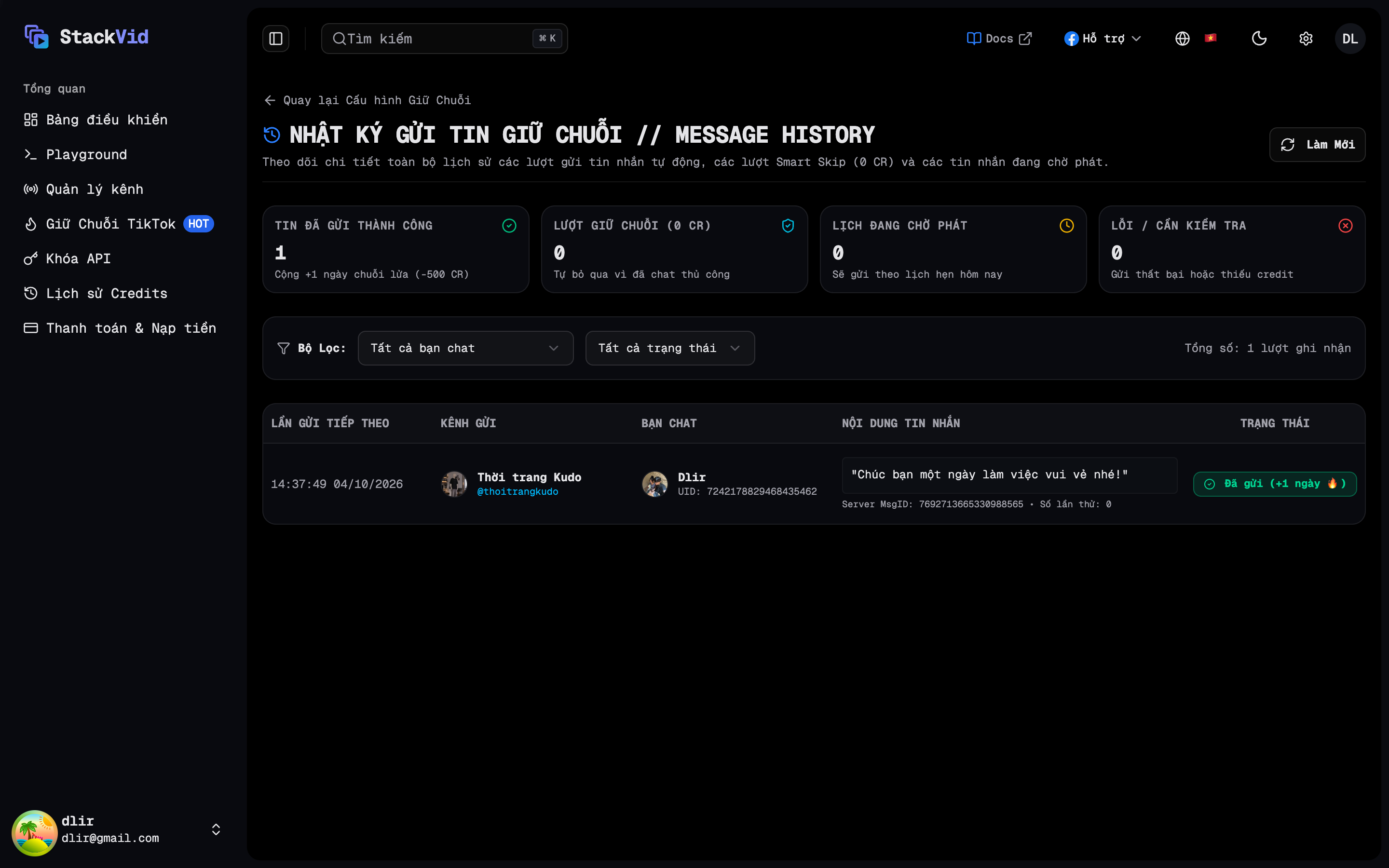
- Separate Sender & Receiver Columns: The dashboard table clearly distinguishes between the sending channel profile and the chat partner with circular avatars and identifiers.
- Next Scheduled Run: Displays upcoming execution timestamps along with message previews.
- Pause / Resume Toggle: Toggle any streak rule on or off instantly with 1 click.
- Dedicated Full-Page History (
/streaks/history): Click the "Message History" icon on any rule or in the top toolbar to view the full-width log page with KPI stat cards, status filters, and complete message delivery reports.